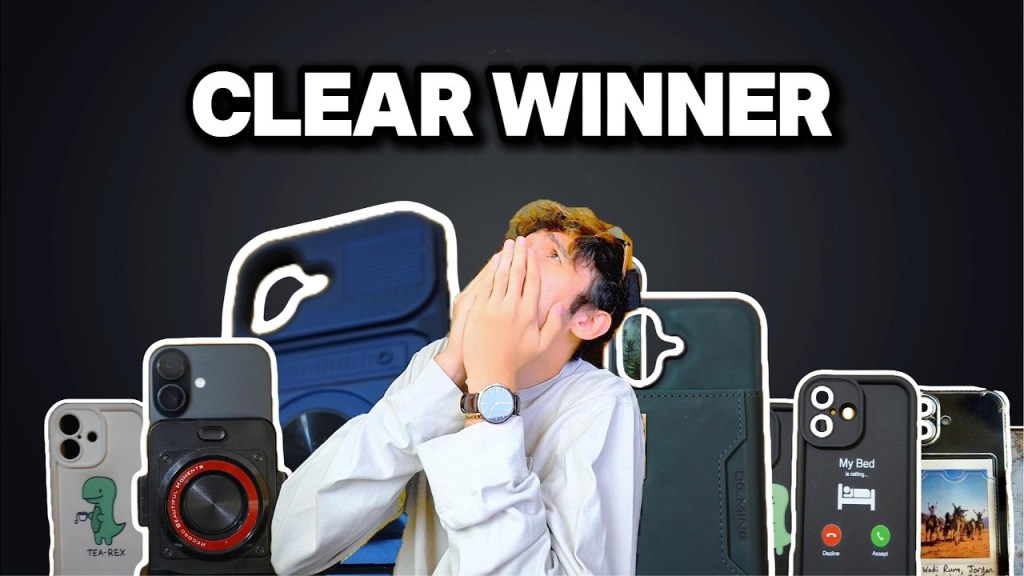
The BEST iPhone 16 Case FOR YOU – Fix Battery Life, Add Style & More!

Can a phone case actually solve real problems with your iPhone 16? After testing tons of cases, I found options that can do just that—whether you need more battery life, extra protection, or just some serious style.

Let’s break down the best iPhone 16 cases for different needs, including the one case that literally fixed my iPhone 16’s biggest problem.


Honorable Mentions – Fun & Functional

1. Aesthetic / Fun Cases (For the Personality Boost)

Let’s face it—sometimes you don’t need techy features. You just want your case to make you smile or stand out.
Here are a few I love:

  • Nature Vibes (“Travel is my therapy”)
  • Funny Cases (like the “Tea Rex” designs)
  • Adventure-Inspired (“I love nature” mountain case)

These cases bring out personality and make your phone feel uniquely yours.

👉 Tea Rex Case
👉 Mountains Case
👉 More fun cases here


2. The Minimalist Wallet Case

Perfect for anyone who wants to ditch the wallet entirely.
This leather case has a built-in MagSafe wallet that doesn’t fall off easily like most MagSafe wallets do.
I was shocked by how much I could fit:

  • 6+ cards
  • Quick-access slot on the front
  • Magnetic closure
    It’s slim, practical, and comes in multiple colors.

👉 Check out the wallet case here


3. The Ring / Protective Case

For those who drop their phones way too often—this is your go-to.
The built-in ring makes it almost impossible to fumble your device and offers extra grip and drop protection. It’s also way sturdier than a typical pop socket.

👉 See the ring case here


4. The Clear Card / Polaroid Case

A twist on your typical clear case—this one has a hidden slot for:

  • A credit card
  • A transit pass
  • Or my personal favorite, a Polaroid photo!

It’s multi-purpose and looks great with personal photos.

👉 Check out the clear Polaroid case here


The Case That FIXED My iPhone 16 (For Real)

Let’s talk about the iPhone 16’s battery life
It’s not great. Actually, it’s one of the worst I’ve experienced from an iPhone. Instead of relying on MagSafe battery packs (which are easy to lose), I found something better.

✅ The Battery Case

This thing is a game-changer.

  • Charges via USB-C (same as the iPhone 16!)
  • Built-in battery indicator
  • Feels rugged & protective
  • Doubles my battery life easily

I haven’t been able to kill my phone since using this. It feels more natural than carrying an extra MagSafe battery, and it solves the iPhone 16’s battery problem completely.

👉 Grab the battery case here


Which One’s Best for YOU?

If you:

  • Want personality & humor → Go with the fun designs
  • Need a wallet replacement → Try the minimalist leather wallet case
  • Drop your phone often → The ring + rugged protection case is perfect
  • Love customization → The clear Polaroid slot case is super versatile
  • Struggle with battery life → The battery case is the ultimate fix

No matter your style or needs, one of these will seriously upgrade your iPhone 16 experience.

The links above are affiliate links and support me at no extra cost to you.


Thanks for reading! Got a favorite? Let me know in the comments or tell me which type of case you always go for.

Master Your Sony Camera: A Deep Dive into My Custom Settings

For those who love capturing stunning visuals with a Sony Alpha Camera, customizing your settings can make all the difference. Whether you’re filming a fast-paced vlog, capturing the stars, or recording slow-motion footage, having the right settings ready to go can streamline your workflow and enhance your creativity. Here’s a comprehensive guide to the settings I use on my Sony A7C, including custom modes, button configurations, and menu options that help me get the best out of my camera.

1. Custom Modes: Tailor-Made for Every Scenario

Movie Mode

For most of my video work, I stick with 4K at 24 frames per second. This resolution and frame rate provide a cinematic look and are perfect for most filming situations. I often use aperture priority mode here, especially since I currently don’t use an ND filter. This setup ensures I capture high-quality footage with minimal fuss.

Timelapse Mode

When I need to create quick time-lapse sequences, I switch to the SNQ (Slow & Quick) mode, set to one frame per second. This mode is great for capturing smooth, flowing movements, whether it’s bustling city streets or serene landscapes. I keep it at 24p to maintain a consistent, slightly sped-up feel without going overboard.

Slow Motion Mode

For those times when I want to slow things down, I use Custom Mode 1, set to 1080p at 120 frames per second. This setting is perfect for capturing high-speed actions with clear, crisp details. It’s an excellent choice for sports or any action shots where detail is crucial.

Astrophotography Mode

Custom Mode 2 is dedicated to astrophotography. For nighttime shoots of the Milky Way or star trails, I use a 15-second exposure with a 10-second self-timer to minimize camera shake. I set the white balance to incandescent to keep the colors consistent and use manual focus to ensure sharp, clear stars.

Nightlapse Mode

Mode 3 is for capturing night lapses. I use a 15-second exposure with 30-second intervals between shots. This setting allows me to document the movement of stars over a long period, turning hours of shooting into a short, captivating video. It’s set to manual focus and uses interval shooting to automate the process.

2. Custom Button Configurations

Custom buttons are a game-changer for efficiency. Here’s how I have mine set up:

  • Down Button: Activates APS-C crop mode.
  • Left Button: Enables Clear Image Zoom, which provides additional cropping options.
  • Right Button: Adjusts ISO settings quickly.
  • Trash Can Button: Toggles between autofocus and manual focus.
  • Center Button: Controls monitor brightness, switching between bright settings for outdoor use and dim settings for indoor shooting.

3. Custom Menu Settings

For quick access to essential features, I’ve customized my menu:

  • Peaking: I set peaking to high and red for manual focus assistance, highlighting what’s in focus.
  • Zebra: Helps me monitor exposure levels and avoid overexposure.
  • Manual Focus Assist: Zooms in to fine-tune focus, especially useful for astrophotography.

Additionally, the custom menu allows me to switch between 4K and 1080p easily and adjust audio recording levels when needed.

4. How to Set Up Custom Settings

Adding to the Custom Menu:
Go to the “Favorites” section in the menu, select “Add Item,” and choose the features you frequently use. This keeps them easily accessible without digging through multiple menus.

Configuring Custom Buttons:
Navigate to the camera settings, select “Custom Key,” and assign functions to the buttons based on your shooting style.

Setting Custom Modes:
Adjust all your settings to fit your needs, then save them under a custom mode by navigating to the memory section in the camera menu. If the memory option is grayed out, try switching modes and then back again to enable it.

5. Final Thoughts

The Sony A7C (affiliate) is a fantastic camera, and with the right settings, it becomes even more powerful. My custom modes and button configurations are tailored to my needs, from creating engaging YouTube content to capturing breathtaking night skies. I hope this guide helps you set up your camera to match your shooting style. Feel free to share your settings or any tips you have in the comments!

Happy shooting!